
If you run a Shopify store with multiple product types such as clothing shoes accessories or uniforms you probably need custom size guides for each category. Shopify Metafields feature makes it possible to assign different size guides per product or product type without installing additional apps.
In this comprehensive step by step guide you will learn how to:
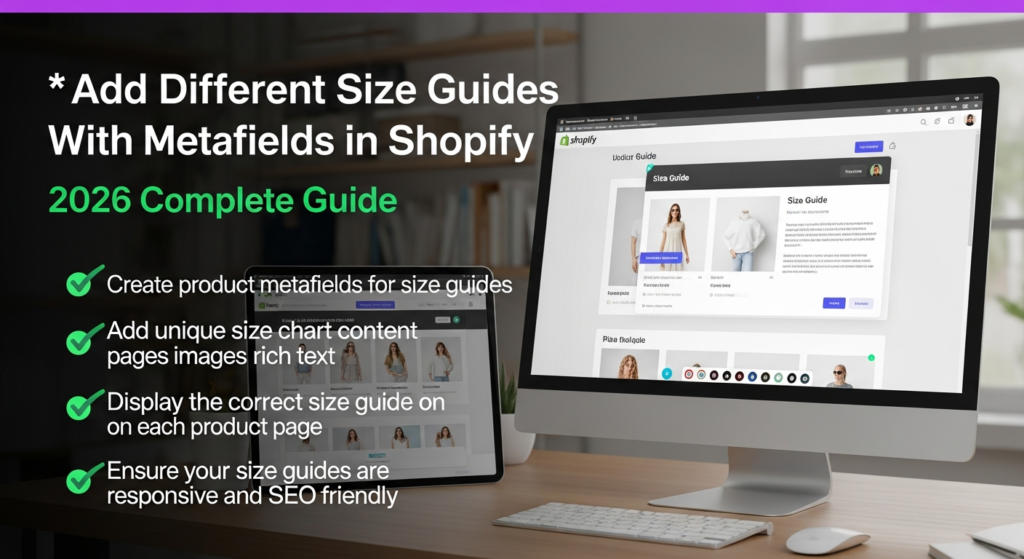
✔ Create product metafields for size guides
✔ Add unique size chart content pages images rich text
✔ Display the correct size guide on each product page
✔ Ensure your size guides are responsive and SEO friendly
By the end you will have a Shopify store where every product shows the right size chart improving customer experience and reducing returns.
Why Use Metafields for Size Guides in Shopify?
Shopify metafields allow you to store custom data that isn’t part of Shopifys default product fields. With metafields you can add:
Different size charts for each product or product category
Pages images or rich text content as the size guide
Dynamic content that only displays when a size guide exists
This approach is especially useful for stores with multiple sizing standards — like mens/womens apparel kids clothing or footwear. You can connect metafields to your product templates to ensure the correct chart shows for each item.
Step 1: Create the Metafield Definition in Shopify
- In your Shopify admin go to Settings → Metafields & Metaobjects.
- Click Products because size guides are product specific.
- Click Add definition.
- Name it something like Size Guide or Size Chart.
- Select the content type based on how you want to store the guide:
- Page reference link to a Shopify Page with your size chart.
- Rich text text and tables directly in the product metafield.
- File image upload a size chart image per product.
- Save the metafield definition.
By using a Page reference metafield you can create reusable size chart pages like Mens Size Guide Womens Size Guide Shoe Size Chart etc. and assign them individually.
Step 2: Add Size Guide Content to Each Product
Once your metafield definition is in place open a product you want to assign a size guide:
- Scroll down to the Metafields section on the product admin page.
- You will see your new “Size Guide” metafield.
- Depending on what type you chose:
- Page reference: Select the size chart page you created.
- Rich text: Paste your size guide table or text.
- File/Image: Upload the specific size chart image.
Repeat this for each product so that every item has the correct size guide assigned.
Pro tip: Use the bulk editor in Shopify to assign the same size guide to multiple products at once.
Step 3: Connect the Metafield to Your Product Template
To display the size guide on the storefront you need to connect this metafield to your product page template using Shopifys theme editor for Online Store 2.0 themes:
- Go to Online Store → Themes.
- Click Customize on your current theme.
- Navigate to a Product page in the theme editor.
- Add or locate a block where you want the size guide link or content to appear.
- Click the Dynamic source icon next to that blocks settings.
- Select your Size Guide metafield.
- Save your changes.
If your theme doesn’t support dynamic sources for your desired block you may need to use a Custom Liquid block with a snippet like:
{% if product.metafields.custom.size_guide %} {{ product.metafields.custom.size_guide }}{% endif %}
This Liquid code ensures the size guide only appears if a metafield is assigned to the product. Shopify Help Center
Step 4: Create Search Friendly & Accessible Size Guide Pages
For SEO and accessibility ensure your size chart pages if using Page reference metafields include:
✔ Descriptive page titles e.g. “Mens Shirt Size Chart”
✔ Structured HTML tables or lists for sizes
✔ Alt text for images if you use size chart images
✔ Keyword rich descriptions referencing sizes and fits
Search engines love clear structured information — so breaking size guides into HTML tables with headers like Size Chest Waist and Length helps both users and search bots.
Example:
| Size | Chest in | Waist in | Height cm |
| S | 34–36 | 28–30 | 170–175 |
| M | 38–40 | 32–34 | 176–182 |
This style improves accessibility and helps search engines understand and index size guide content more effectively.
Tips for Different Scenarios
1. Multiple Size Guides for Different Product Types
If you sell both clothing and shoes create separate metafields like:
- Size Guide Clothing
- Size Guide Footwear
That way you can tailor the content precisely for each category.
Alternatively you can still use one metafield but assign different pages or images per product.
2. Using Rich Text Instead of Page Reference
Instead of linking to a separate page you can enter the size chart directly into a rich text metafield. This is useful if the chart is simple or very specific to a single product.
3. Using Images for Size Guides
Some merchants prefer visual size guides like infographics. In this case set your metafield type to File and upload a size chart image. Then display it using a custom Liquid block that renders the image only when present. Shopify Community
Testing & Best Practices
Preview different products after setup to ensure the correct size guide is showing.
Check on mobile and desktop especially if you use pop ups or modals for size charts.
Use descriptive ALT tags for accessibility and improved image SEO.
Use consistent naming conventions for pages and metafields to keep your admin organized.
Conclusion
Adding different size guides to your Shopify store using metafields makes your product pages more helpful and helps reduce returns and customer questions. Using Shopify’s dynamic sources and metafield system:
You can assign unique size charts per product.
You can display charts using pages images or rich text.
You can do all this without paying for apps if youre using a compatible theme. Shopify Help Center
Whether you are selling clothing footwear or any size dependent products this metafields method helps you provide tailored sizing information that improves user experience and search engine visibility.


